



When SES.Hospedajes rejects a submission, copy the exact error text first, then check the field it points to and correct the data before you retry. If the message points to signing or login, update Autofirma or switch to a properly registered Cl@ve or digital certificate account. If the error persists after that, email [email protected] with screenshots and your establishment details.
TL;DR:
- Most rejections are due to data format errors, incorrect guest ID entries, or mismatched document details that require precise correction.
- Authentication and signature errors often stem from outdated Autofirma installations or unverified Cl@ve or digital certificates, not the guest data.
- Platform updates can modify validation rules, making it essential to consult the latest guidance and retest signature workflows regularly.
- Sending submissions after the specified reporting deadlines leads to late fines, which can reach up to €30,000 for serious violations.
- Automating guest data collection and reporting can significantly reduce manual errors, especially when managing multiple properties or channels.
Table of Contents
- 1. Most common SES.Hospedajes error messages and quick fixes
- 2. Step-by-step troubleshooting checklist (fast triage and fix)
- 3. Access and digital-signing errors: Autofirma, Cl@ve, and certificates
- 4. Data validation errors tied to RD 933/2021
- 5. Submission timing, late reporting, and the sanction risk
- 6. How and when to contact Ministry support
- 7. Preventing errors: operational checks and automation
- 8. Understanding error logs and what they actually tell you
- 9. Common misunderstandings that lead to avoidable errors
- 10. Why platform updates catch property managers off guard
- 11. How to confirm a correction actually worked
- Recurring root causes and the fixes that actually work
- EuroCheckin: an automation option to reduce manual SES.Hospedajes errors
- Sources
- FAQ
1. Most common SES.Hospedajes error messages and quick fixes
Most rejections fall into three categories, and knowing which one you are looking at saves you time.
Format and missing-field rejections happen when a required field is empty, too short, or in the wrong format, such as a document number entered with spaces or a date typed in the wrong order. Authentication and signature errors appear when your digital certificate, Cl@ve session, or Autofirma installation cannot validate your identity, and these are unrelated to the guest data itself. Temporary server or network errors show up as generic failure messages and usually resolve if you wait a few minutes and resubmit, since the platform can be slow during peak reporting hours.
The Ministry of Interior’s Hospedajes and vehicle rental portal offers a Guía Visual and FAQ built for exactly these situations, and it is worth bookmarking.
A quick way to triage:
- If the error names a specific field, it is a data problem: fix that field and resubmit.
- If the error mentions a certificate, signature, or session, it is an access problem, not a data problem.
- If the message is vague or generic, wait a few minutes and retry once before assuming something is broken.
- If the same error repeats after a retry and a data check, treat it as worth escalating to Ministry support.
Reading the error this way keeps you from wasting time correcting data when the real issue is your login, or vice versa.
2. Step-by-step troubleshooting checklist (fast triage and fix)
Work through this checklist in order before you contact anyone.
- Record the exact error text, the timestamp, and a screenshot before you change anything, so you have proof of what happened and when.
- Confirm your establishment’s registration status, including whether your certificate or Cl@ve account is correctly linked to the property, since access problems often masquerade as data errors.
- Check the required fields for your property type against what you entered, paying attention to ID numbers, nationality codes, and dates.
- Validate every guest ID field against the physical document the guest presented, since a single mismatched digit or letter is the most frequent cause of rejection.
- Test the signing process separately from the data: update Autofirma to its current version, try a different browser or machine, and attempt the submission again.
- If the error still won’t clear, gather your evidence (screenshots, exact text, timestamps, establishment number) and send one clear email to Ministry support rather than several fragmented ones.
Pro Tip: Keep a shared document listing every recurring error your team has seen and how you solved it, so the next person does not start from zero.
Following these steps in order matters because signing issues and data issues produce similar-looking failures, and fixing the wrong one first just wastes a submission attempt.
3. Access and digital-signing errors: Autofirma, Cl@ve, and certificates
Signature failures are among the most frustrating errors because the message rarely explains what actually went wrong.
Autofirma is the tool SES.Hospedajes commonly relies on for digital signing, and an outdated version or a broken browser integration is a frequent cause of silent failures. Reinstalling the current version and confirming your browser recognizes it usually clears the problem. Cl@ve and electronic certificates serve the same access purpose in different ways, and confusion between the two, such as trying to sign with a certificate that isn’t the one registered to your establishment, produces authentication rejections that look identical to data errors. The Sede electrónica’s procedural pages explain the access requirements for both methods and the registration steps needed before you can use the application at all.
A short checklist for access problems:
- Confirm which credential (Cl@ve or certificate) is actually registered against your establishment number.
- Update Autofirma to its latest version before troubleshooting anything else.
- Test the signature on a second browser or device to rule out a local configuration problem.
- Attempt a low-stakes test submission to confirm the signature is being accepted before resubmitting real guest data.
Getting the signing workflow right once and documenting it for your team prevents most of these errors from recurring.
4. Data validation errors tied to RD 933/2021
Real Decreto 933/2021 sets out the specific data every submission must include, and most validation errors trace back to a mismatch with those requirements.
- Guest identification fields (document number, type, and nationality) must match the physical ID exactly, including how letters and numbers are formatted.
- Dates need to follow the format the platform expects, and a transposed day and month is a common cause of silent rejection.
- Minors traveling with an adult require a relationship field to be completed correctly, and errors here are common because managers sometimes skip it assuming it is optional.
- Retention obligations require you to keep this data for three years, which means exactness at entry matters well beyond the moment of submission, since an inspection can occur long after checkout.
A guest’s document number entered as “12345678-A” instead of “12345678A” is a typical example of a format mistake that triggers rejection even though the underlying data is correct. Our guide to collecting guest data in Spain walks through the field-by-field formatting in more detail.
5. Submission timing, late reporting, and the sanction risk
Real Decreto 933/2021 sets tight windows for reporting: some events require immediate transmission, while others allow up to 24 hours, and the regulation generally expects communications within short timeframes after check-in.
A submission sent after the deadline counts as late, even if the data itself is perfect, and the Ministry treats late reporting the same way it treats missing or inaccurate reporting.
Sanctions escalate with severity. The Ministry of Interior states that minor infractions, such as small errors or brief delays, carry fines between €100 and €600, while serious failures carry sanctions up to €30,000.
Keeping screenshots and logs of every attempted submission, including failed ones, gives you evidence that you tried to comply on time even when a technical error got in the way.
6. How and when to contact Ministry support
Once you have exhausted the checklist, a single well-prepared email to [email protected] resolves most remaining issues faster than repeated attempts on your own.
Include in that email:
- The exact error text, copied word for word, not paraphrased.
- Screenshots of the error and the screen where it occurred.
- Your establishment registration number and the type of credential you are using (Cl@ve or certificate).
- The timestamp of the failed attempt and a short list of what you already tried.
Pro Tip: Reference the Guía Visual or the specific article of RD 933/2021 you believe applies; it signals you have already checked the basics and tends to speed up the reply.
If the issue is blocking your ability to report guests at all, say so explicitly in the subject line, since operational blockers are treated with more urgency than general questions.
7. Preventing errors: operational checks and automation
Most recurring errors trace back to the same handful of habits, and fixing those habits prevents more problems than any single troubleshooting session.
- Use a standardized intake script so every staff member collects the same fields in the same order.
- Cross-check ID documents against entered data at the moment of arrival, not after the guest has left.
- Train staff specifically on date formats and document number formatting, since these cause a disproportionate share of rejections.
- Keep your signing credentials (Autofirma, Cl@ve, or certificate) tested and current rather than discovering a problem mid-submission.
Automating the submission step removes most manual-entry errors and ensures data reaches SES.Hospedajes immediately rather than in a batch someone forgot to send. A compliant automation setup should offer secure EU-based hosting, a proper signature workflow, and clear data retention rules aligned with GDPR. Certain platforms handle automated SES submissions, keep a digital guestbook, and sync calendars across booking platforms, all built around these compliance requirements. Our checklist for vacation rental owners covers the daily habits that pair well with any automation you adopt.
8. Understanding error logs and what they actually tell you
SES.Hospedajes error logs are more informative than they first appear, but only if you know what you are looking at. A log entry typically includes a timestamp, a reference to the specific record or field involved, and a code or short description of what failed. The description is often generic, but the field reference is usually precise, so start there instead of guessing.

When a log points to a specific guest record, check that record’s fields one by one against the original ID document rather than assuming the whole batch is at fault. A single bad character in one record can cause the entire submission to fail, which makes isolating the problem record far more useful than resending the same batch repeatedly. When a log shows a repeated pattern, such as the same field failing across multiple guests, that usually indicates a formatting habit your staff needs to correct rather than an isolated mistake.
Logs that reference authentication or session tokens rather than guest data point to an access problem, not a data problem, and should send you back to your Autofirma or Cl@ve setup instead of your guest records. Reading logs this way, field first, pattern second, access issues separately, turns a confusing wall of text into a short list of concrete fixes.
9. Common misunderstandings that lead to avoidable errors
A surprising number of SES.Hospedajes errors come from assumptions rather than technical faults. One frequent misunderstanding is treating the relationship field for minors as optional: it is required whenever a minor travels with an accompanying adult, and leaving it blank triggers rejection even when every other field is correct.
Another common mistake is assuming a successful login means the submission itself succeeded, when in fact authentication and data acceptance are two separate steps that can each fail independently. Managers also sometimes assume that because a submission worked last month, the same process will always work, without accounting for the fact that the Ministry updates validation rules and interface details periodically.
A subtler misunderstanding involves document formatting: many property managers assume the system will strip spaces or punctuation automatically, when in practice the platform often expects the number exactly as it appears on the guest’s document, with no separators added. The Ministry’s Guía Visual addresses many of these points directly, and rereading it periodically catches assumptions that quietly went stale.

10. Why platform updates catch property managers off guard
SES.Hospedajes is not a static system, and periodic updates to its interface, validation rules, or required fields are a recurring source of errors for managers who assume the process never changes. An error that never appeared before can suddenly show up after an update changes how a field is validated or how the signature step behaves.
The safest habit is to treat the Ministry’s official guidance as the current source of truth rather than relying on memory or a colleague’s notes from a previous booking season. Checking the Guía Visual and FAQ on the Ministry’s Hospedajes portal after any unexplained error is a quick way to confirm whether something on the platform side has shifted.
Teams that rely on manual entry are more exposed to this kind of disruption, since a single staff member may not notice a subtle interface change until several submissions have already failed. Automated reporting tools that stay current with platform requirements reduce this exposure, since the correction happens once at the system level instead of being repeated by every property manager independently.
11. How to confirm a correction actually worked
After fixing a rejected submission, resubmit the corrected record and confirm you receive a successful acceptance message rather than assuming silence means success. The safest test is a full resubmission of the corrected record, watched through to completion, rather than a partial retry.
If the original error involved a signature or authentication problem, test the signing step on its own first, using a low-stakes action if the platform allows it, before resubmitting real guest data. This isolates whether the access issue is actually resolved before you risk another failed submission.
Keep the confirmation screen or acceptance message as part of your records alongside the earlier error screenshots, since this pair of documents shows both that a problem occurred and that it was resolved correctly and on time. For establishments handling many bookings, spot-checking a handful of recent submissions each week catches small recurring formatting issues before they become a pattern serious enough to trigger repeated rejections. Our tourist accommodation registration guide covers this kind of ongoing compliance check in more detail.
Recurring root causes and the fixes that actually work
Across the errors property managers deal with, two root causes show up again and again: guest ID data that doesn’t match the physical document, and signing or authentication setups that were never tested until they failed. Neither is exotic, and neither requires a technical background to fix.
The most effective response is unglamorous: standardize how staff collect data, test your signing workflow on a schedule rather than waiting for a failure, and let automation handle the repeatable parts of the job. Document every failed submission anyway. It is your best evidence if an inspection ever questions your compliance timeline.
— Sofía Herrera
EuroCheckin: an automation option to reduce manual SES.Hospedajes errors
If your team is still entering guest data by hand across several listings, the errors covered above will keep recurring no matter how well-trained your staff is. Some platforms automate the reporting step itself, submitting guest data to SES.Hospedajes directly so a mistyped field or a missed deadline is far less likely to happen in the first place.
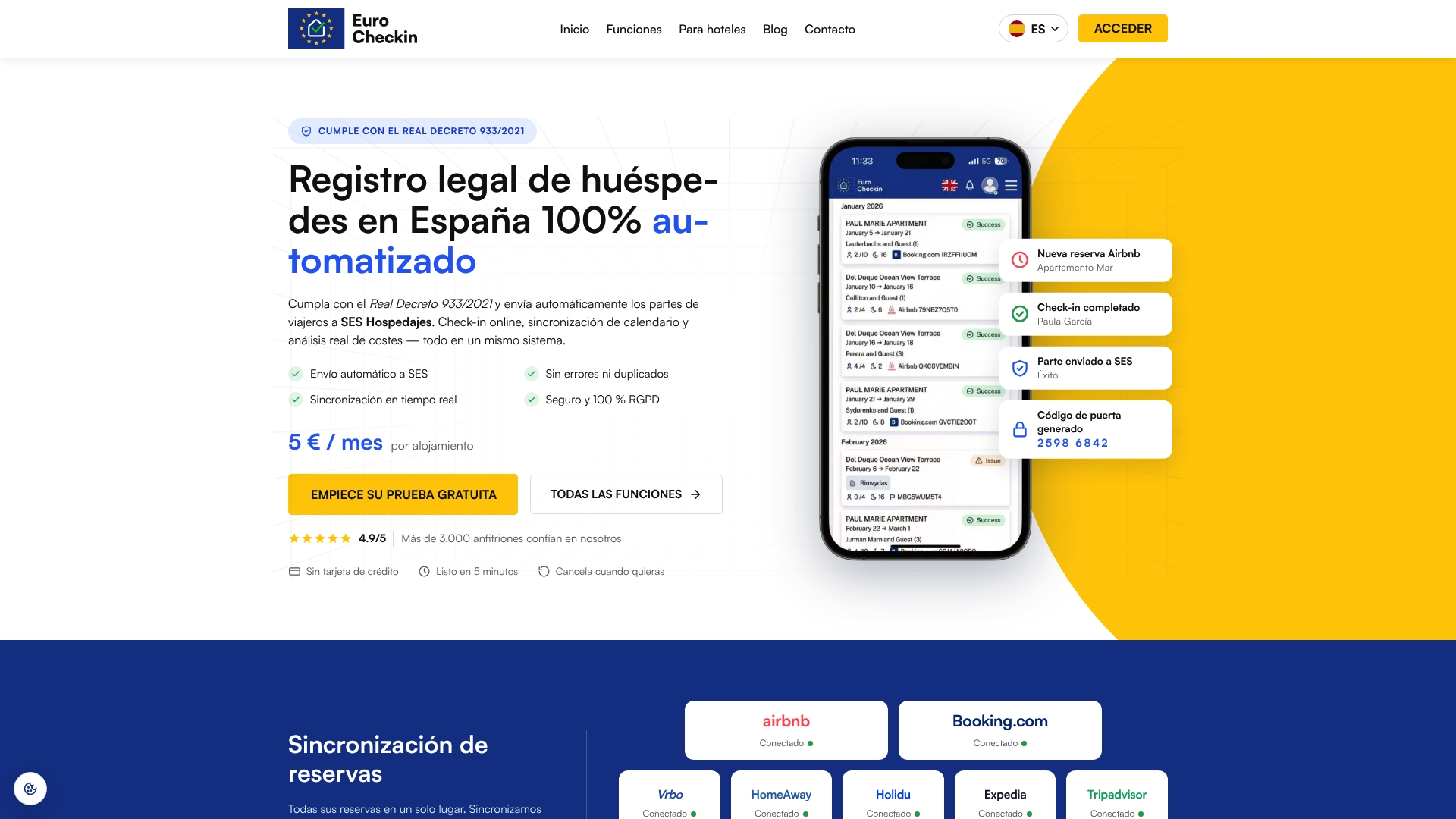
- Automated SES submissions send guest data the moment check-in is completed, without a staff member re-entering it manually.
- Multilingual online check-in collects guest details directly from the guest, reducing transcription errors on your end.
- Digital contracts, a digital guestbook, and calendar sync across Airbnb, Booking, and other platforms run alongside the SES reporting.
- Data is hosted on infrastructure within the European Union, aligned with GDPR retention rules.
This kind of setup tends to matter most once you are managing more than a couple of properties or juggling bookings across several channels, since that is when manual entry starts producing the mismatches described earlier. You can see how the reporting workflow works on the EuroCheckin landing page.
Sources
- Ministerio del Interior — Hospedajes y alquiler de vehículos
- BOE — Real Decreto 933/2021
- Sede electrónica — Tramites (Hospedajes y alquiler de vehículos)
FAQ
What does a signature error in SES.Hospedajes usually mean?
A signature error almost always points to a problem with Autofirma, Cl@ve, or your digital certificate rather than the guest data itself. Updating Autofirma to its current version and confirming the correct credential is registered to your establishment resolves most of these cases.
How quickly must I report guest data under RD 933/2021?
Real Decreto 933/2021 requires some communications immediately and sets a maximum window of 24 hours for others, depending on the type of event being reported. Submitting after that window counts as late, even if every field is filled in correctly.
What are the penalties for errors or late SES.Hospedajes reports?
The Ministry of Interior sets fines between €100 and €600 for minor infractions, with serious failures carrying sanctions up to €30,000. Keeping screenshots of attempted submissions helps demonstrate good-faith compliance if a dispute arises.
How do I contact Ministry support for a persistent SES.Hospedajes error?
Email [email protected] with the exact error text, screenshots, your establishment registration number, and the credential type you are using. Including a short list of the steps you already tried speeds up the response.
Can automation reduce SES.Hospedajes submission errors?
Automating guest data collection and submission removes most manual-entry mistakes, since the data moves directly from the check-in form to the reporting system. EuroCheckin, for instance, submits SES data automatically as part of its digital check-in and guestbook workflow, available from EuroCheckin’s pricing page.