



Export your Booking.com calendar by signing into the Extranet, then going to Rates & Availability → Sync calendars → Add calendar connection → Skip to Export → Copy link. That copied URL is your unique iCal feed for that specific listing, and it should include both booked and closed dates, since Booking.com’s own export tags the file with “/ical/” or “.ics” which helps you recognize it as the right link before pasting it anywhere else.
TL;DR:
- Always include both booked and closed dates when exporting Booking.com calendars to prevent accidental double bookings caused by manual or incomplete data sharing.
- Use clear, consistent naming conventions for each calendar connection to simplify troubleshooting and auditing across multiple listings and platforms.
- Automating calendar sync through tools like Eurocheckin reduces human error, lag, and manual effort, making it ideal for managing multiple listings and rapid turnover.
- Check that the exported iCal URL contains “/ical/” and ends with “.ics” to verify it is the correct link for syncing with external platforms.
- Regularly monitor sync statuses and perform weekly audits to ensure stable connections and prevent silent failures that could lead to double bookings.
Table of Contents
- How Do You Export a Booking.com Calendar Iical Link?
- How Do You Use the Exported Ical Link in Other Platforms?
- What Do the Calendar Connection Statuses Mean?
- What Calendar Habits Prevent Double Bookings?
- How Does Automation Change This Workflow?
- When Is Manual Iical Enough, and When Should You Automate?
- Automate Calendar Sync and Compliance With Eurocheckin
- Sources
- FAQ
How Do You Export a Booking.com Calendar Iical Link?
The process lives entirely in the Extranet, and it takes about two minutes once you know where to click. Every listing you manage has its own iCal address, so if you run three properties, you need to repeat this sequence three separate times.
Here’s the exact path:
- Sign in to the Extranet and select the specific property or unit you want to sync. Booking.com generates a unique iCal link for each listing, so exporting from the wrong unit risks syncing the incorrect calendar.
- Go to Rates & Availability, then click Sync calendars.
- Click Add calendar connection.
- Choose Skip to export — this tells Booking.com you want to send data out, not pull it in.
- Name the connection something specific, like the platform you’re syncing to (this matters more than it sounds like it should, and we’ll get to why later).
- Select your export options and make sure both “booked” and “closed” dates are checked. This step is where most managers get tripped up.
- Click Copy link, then Done.
- Repeat the entire sequence for each additional listing.
The Extranet export process generates a long URL string. Paste it somewhere temporary first, like a notes app, and check for stray spaces or line breaks before you use it. A single misplaced character breaks the entire sync.
Pro Tip: Copy the link directly with the “Copy link” button rather than manually selecting and copying the text, because manual selection often clips a character and can cause silent calendar connection failures.
How Do You Use the Exported Ical Link in Other Platforms?
Once you have the iCal URL, what you do with it depends on whether you’re importing or exporting, and those two directions behave differently.
- Exporting sends your Booking.com reservations out to another calendar or platform, so that system knows those dates are taken.
- Importing does the opposite: it pulls availability data into Booking.com from somewhere else, and it blocks Booking.com from accepting new reservations once an external booking lands.
- Before pasting the link anywhere, check the URL itself. A genuine Booking.com calendar link contains “/ical/” somewhere in the string, and most calendar files across the industry end in “.ics.” If neither shows up, you’ve probably copied the wrong thing.
- Most external platforms have a dedicated field labeled something like “Add calendar via URL” or “Import calendar.” Paste the full link there, save, and the platform should pull in your Booking.com availability.
- If you need the sync to happen immediately rather than waiting for the automatic cycle, look for a manual “Import now” option. Booking.com’s own automatic sync typically runs on a two-hour cycle, so triggering it manually is the fastest way to confirm a new connection is actually working.
Booking.com also publishes a short video walkthrough covering import, export, and status checks, which is worth watching once if you’d rather see the clicks than read them.
What Do the Calendar Connection Statuses Mean?
Once a connection is live, the Sync calendars page shows a status label next to it. Knowing what each one means saves you from guessing whether a sync actually worked.
- Activating: the connection is new and Booking.com is still establishing it. Give it time before assuming something’s wrong.
- Okay (or Ok): the connection is working in both directions, importing and exporting as configured.
- Import only: Booking.com is pulling in data from the other platform but not sending its own bookings out.
- Export only: Booking.com is sending data out, but nothing is coming back in.
- Service error: the connection has failed. This is your signal to act.
If you see a persistent Service error, work through this checklist before contacting support: confirm you’re editing the correct listing, re-check the URL for typos or truncation, verify the receiving platform actually supports iCal, and wait out the roughly two-hour sync window before assuming failure. Test it by blocking a random date and watching whether it appears on the other end. If the error doesn’t clear, delete and re-add the connection instead of editing the existing one.
What Calendar Habits Prevent Double Bookings?
Most double bookings don’t come from a broken sync. They come from a sync that’s technically working but set up carelessly. A few habits fix that.
- Always export both booked and closed dates. Skipping closed dates means your manually blocked maintenance days or personal-use windows stay visible as available everywhere else, which is exactly how accidental reservations happen.
- Name every connection consistently. If you manage five listings across three platforms, a connection named “Unit 2 to Airbnb” is far easier to audit than one named “connection 4.”
- Build in a buffer. Since syncs can lag by up to two hours, avoid making last-minute manual changes right before a guest is expected to book. Assume the other platform hasn’t caught up yet.
- Run a weekly audit of your Sync calendars page. Check every status label, confirm nothing has silently switched to Service error, and spot-check that recent bookings actually appear where they should.
Pro Tip: Set a recurring calendar reminder, not on Booking.com but on your own phone, for a five-minute Friday sync check. Catching a broken connection on a Friday beats discovering it after a weekend double booking.
How Does Automation Change This Workflow?
Manual iCal exports work, but they were never built for managers juggling more than a handful of listings or several booking channels at once. Every added platform is another link to copy, another status to monitor, another two-hour lag to plan around.
Eurocheckin approaches this differently by automating calendar sync across Airbnb, Booking, and more than 12 other platforms, so closed dates and bookings propagate without you manually re-copying links every time something changes. In Spain, these automated syncs may coexist with tools offering automatic guest data reporting to SES Hospedajes, digital check-in flows, and smart lock integrations with TTLock, Nuki, and Yale, which together reduce manual steps compared to a Booking.com only workflow.
The practical upside shows up in fewer places where human error creeps in:
- Consistent closed-date propagation across every connected platform, not just the ones you remembered to update.
- Compliance reporting handled automatically, rather than as a separate manual task.
- Faster guest check-in flows that don’t depend on you being available to send a link.
When Is Manual Iical Enough, and When Should You Automate?
Manual export works fine for one or two listings with low turnover. The lag is tolerable, and the risk of human error stays low when there’s only one connection to watch. The trouble starts scaling up: more listings, faster turnover, or added regulatory reporting all multiply the number of places a single missed click can cause a problem.
If you’re already juggling multiple Sync calendars connections and re-checking statuses weekly, that’s usually the signal to automate. Start by auditing your current connections, standardizing your naming, and trialing automation on a small subset of listings before rolling it out everywhere.
— Sofía Herrera
Automate Calendar Sync and Compliance With Eurocheckin
If you’ve just spent twenty minutes copying iCal links across five listings, you already know the real cost of manual sync isn’t the setup. It’s the repeat labor every time something changes. Eurocheckin removes that repeat work by keeping Airbnb, Booking, and more than a dozen other platforms synced automatically, so a closed date or a new booking updates everywhere at once instead of waiting on you to re-export a link.
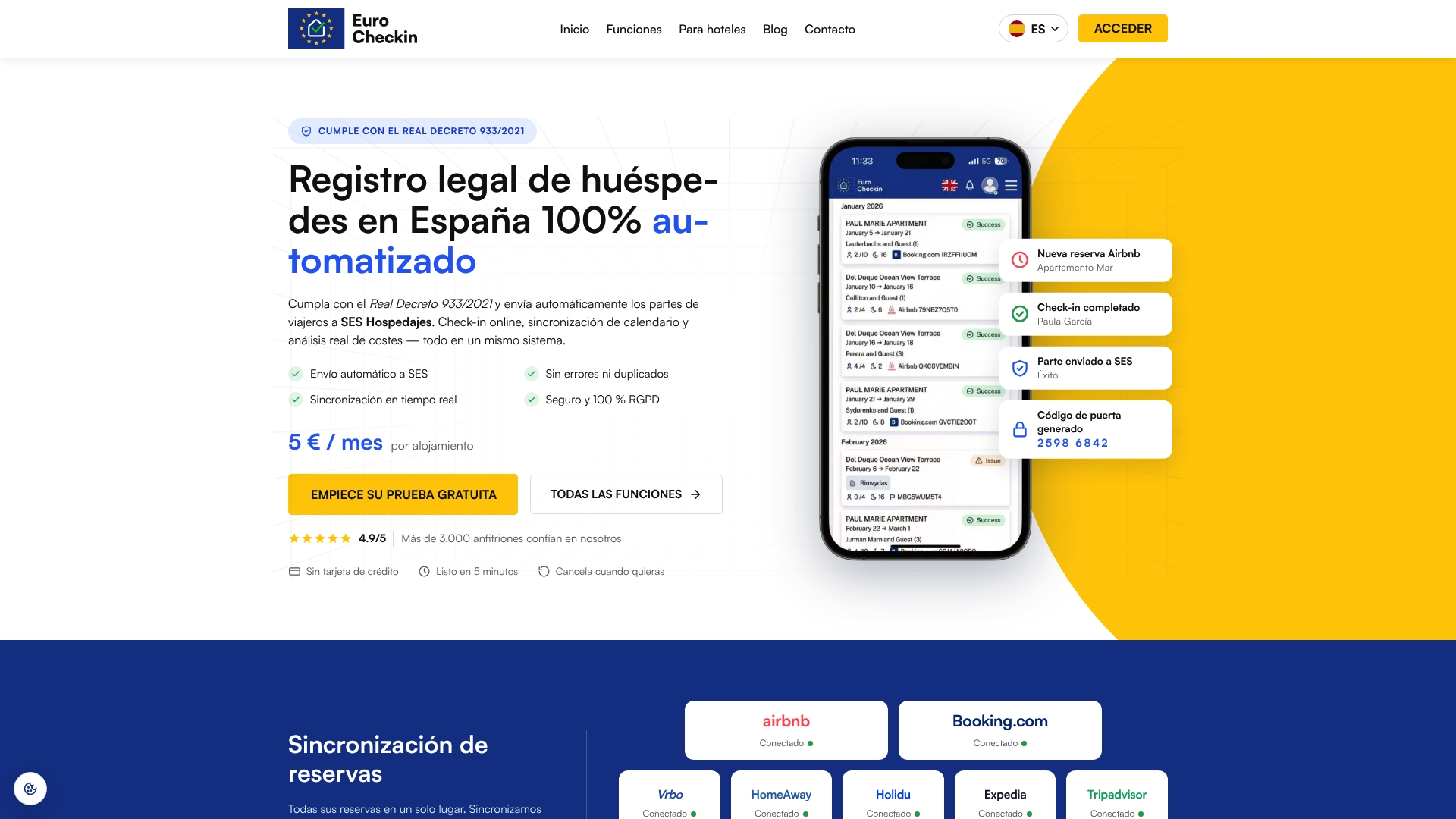
Beyond calendar sync, some platforms automatically report guest data to SES Hospedajes, support multilingual online check-in, and connect with smart locks from TTLock, Nuki, and Yale for unattended arrivals. Pricing details vary; please check the provider’s website for current plans and trial options. Visit the Eurocheckin homepage to start your trial and see the calendar sync running on your own properties.
Sources
- Onboarding – How to export my iCal link from booking.com | Plum Guide Help Center
- How to synchronise your calendars across channels | Booking.com for Partners
- How do I export the Booking.com booking calendar?
FAQ
How Do I Export My Entire Booking.com Calendar?
Sign in to the Extranet, go to Rates & Availability → Sync calendars → Add calendar connection, choose Skip to export, select both booked and closed dates, then click Copy link.
How Do I Share a Booking Calendar URL With Another Platform?
Copy the generated iCal link from the Sync calendars page and paste it into the calendar import field on the receiving platform, usually labeled something like “Add calendar via URL.”
How Do I Import Calendar Events Into Booking.com?
Use the same Add calendar connection menu, but choose the import path instead of Skip to export, then paste the external platform’s iCal URL; imported events can take up to about two hours to sync automatically, or you can trigger an immediate “Import now.”
How Can I Connect Booking.com to My Google Calendar?
Export your Booking.com iCal link through the Extranet, then add it as a new calendar by URL inside Google Calendar’s settings under “Add calendar” so bookings show up alongside your other events.
Does Eurocheckin Replace Manual Booking.com Calendar Exports?
Yes, for managers with multiple listings, Eurocheckin automates the same calendar sync across Booking, Airbnb, and other platforms so you no longer copy and paste iCal links manually for each connection.